
Fred Abou Jawad
Lotus Audio app icon
Lotus Audio
A side project · Free

Your audio recordings, ready to play.

A simple audio player for our meditation community. Paste a WeTransfer link and your tracks are ready to listen to anywhere, with or without internet.

Free. It opens in your browser. Then add it to your home screen so it works like an app. See the steps for your device.

  • Free
  • No account
  • Works offline
  • Nothing uploaded

Works on iPhone, iPad, Android, Windows and Mac.

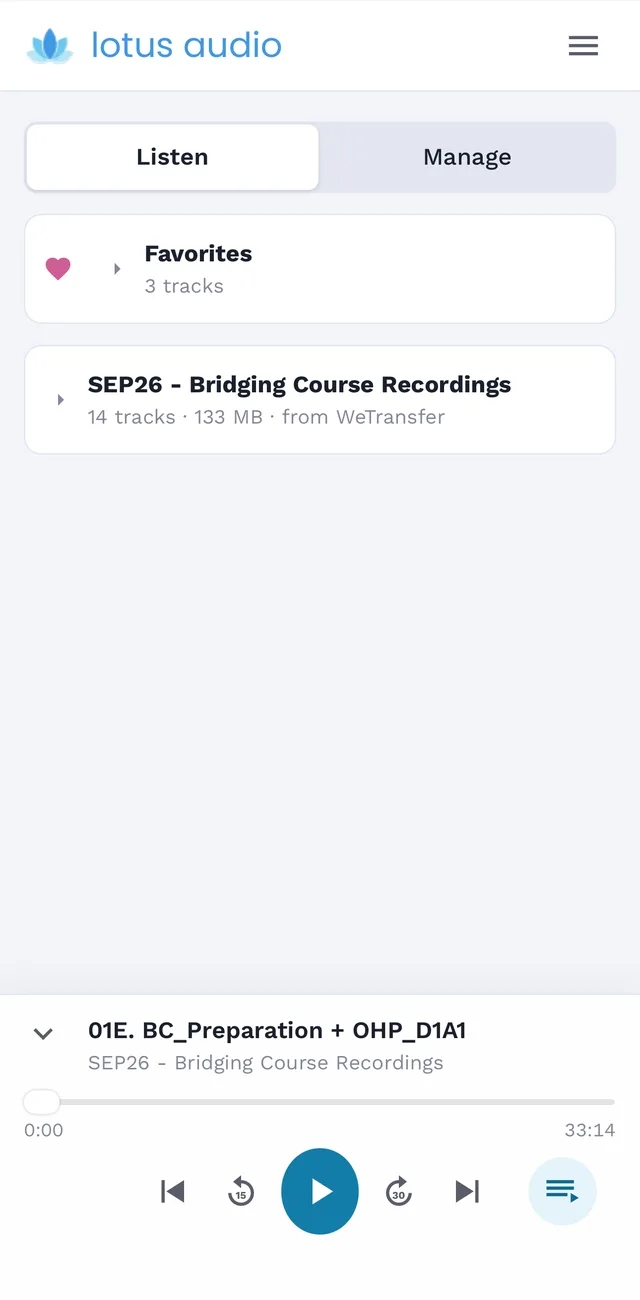
Lotus Audio Listen tab with a playlist and the player
Listen
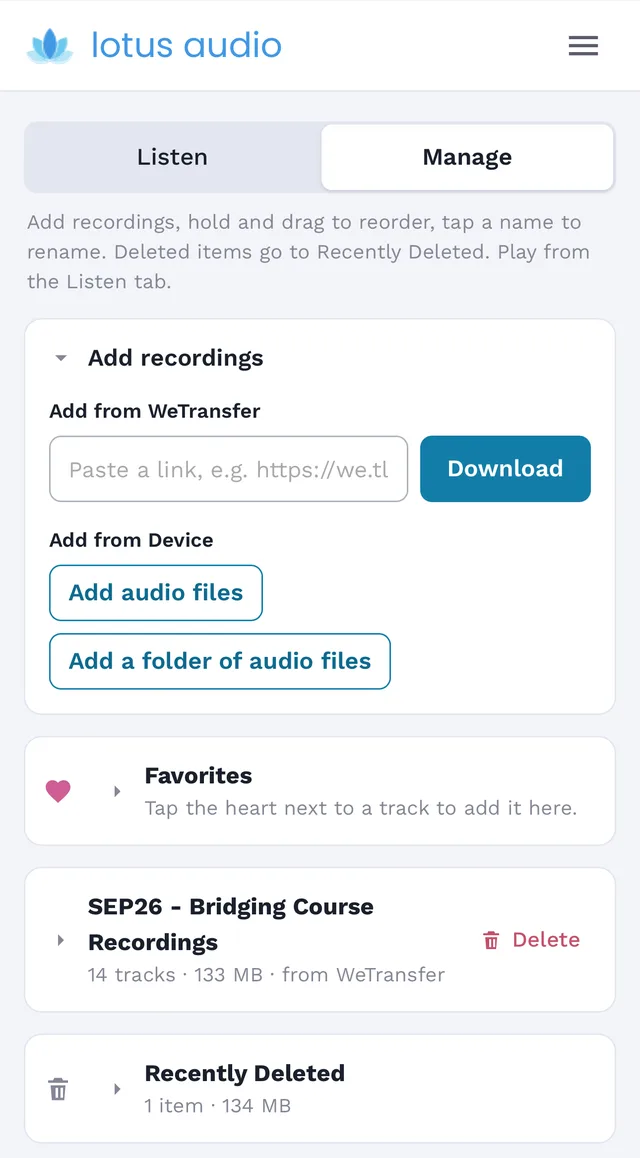
Lotus Audio Manage tab with a WeTransfer link field and buttons to add audio files
Add recordings

How it came together

One friction point, a few days

The friction. From meditation workshops we receive audio recordings, usually as WeTransfer links. Getting from a link to something you can actually play takes more steps than it should, especially on a phone.

The build. I described the problem to Claude and we worked on it together over a few days, trying things, fixing what didn't feel right, and keeping it simple. We followed my established AI Build Framework and Claude did the heavy lifting, making it a smooth and fun project.

The result. Paste a link, tap Download, and the tracks arrive as a playlist, ready to play. I'm sharing it free with our community.

Before
Open link→Download→Unzip→Find the files→Pick a player
With Lotus Audio
Paste link→Listen

How to use it

About two minutes to set up
  1. Install

    Open Lotus Audio and add it to your home screen. The steps for each device are below.

  2. Add recordings

    Go to Manage, open Add recordings, paste a WeTransfer link and tap Download. You can also add audio files or a whole folder from your device.

  3. Listen

    Go to Listen and tap a playlist. Keep the tracks you return to in Favorites.

  4. Keep it tidy

    In Manage, hold and drag to reorder, or tap a name to rename it. Deleted items wait in Recently Deleted for 30 days.

Add it to your device

No app store needed
Open Lotus Audio

Start here. Once it's open, follow the steps for your device.

iPhone & iPad

In Safari
  1. Open Lotus Audio in Safari.
  2. Tap Share (on newer iPhones it's in the ••• menu).
  3. Choose Add to Home Screen, then Add.
  4. Open Lotus Audio from your Home Screen and add your recordings there. Anything downloaded in the Safari tab stays in Safari.

Android

In Chrome
  1. Open Lotus Audio in Chrome.
  2. Tap the ⋮ menu.
  3. Choose Add to Home screen or Install app, then Install (not Create shortcut).

In Samsung Internet: ☰ → Add page to → Home screen.

Windows & Mac

In Chrome, Edge or Safari
  1. Open Lotus Audio in your browser.
  2. In Chrome or Edge, click the install icon in the address bar.
  3. In Safari on Mac, choose File → Add to Dock.

Good to know

Stays on your device

Your recordings stay on this device. Nothing you add is uploaded or shared.

Works offline

Once a recording has downloaded, you don't need a connection to play it.

Freeing up space

Deleted recordings leave your device after 30 days. Delete them from Recently Deleted to free the space sooner.

Have a friction point of your own? If something in your day has an annoying extra step, it might make a great first project. I share how I build things like this on YouTube and LinkedIn.

Follow along